Configure MFA access to Pragma Fortress SSH Server
To setup Pragma Fortress SSH server for accepting, MFA authentication, follow these steps:
-
Open our Local SSH Server Configuration program, located in our Pragma Server Management folder on the Start menu.
-
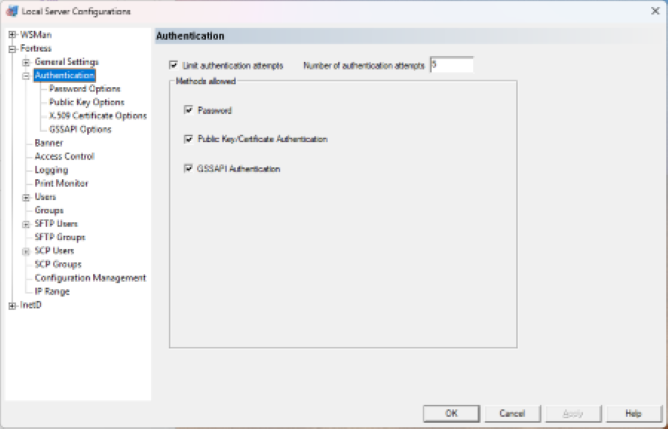
Select Fortress->Authentication tab. It should have "Public Key/Certificate Authentication" enabled. If not enable it.
-
Select "X.509 Certificate Options" tab on the left side. Usually, you want to leave the default options as shown above.

-
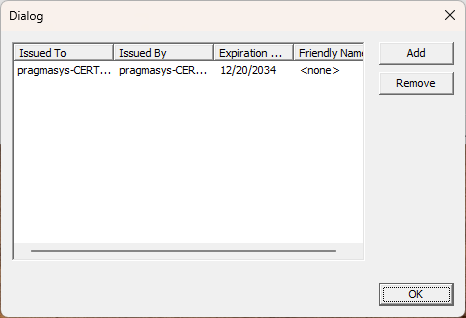
You need to provide the root certificate of your Certificate Authority to the SSH server. So select "Edit Trusted Certificates" button. You will see the followig dialog to add your root CA of the domain/trust authority that issued the smart card certificates in your organization/Government. Select "Add" and point to your CA root certificate (a file that you have typically exported or obtained from your IT admin).
-
Above you can see we have it pointed to our pragmasys-CERT root CA which issued all our certificates. Then hit OK to save it. Then hit Apply in next dialog to make it active.
Your Pragma SSH server is now configured to accept MFA from remote SSH clients using smartcards or Yubikeys. No reboot of server is needed.