|
Install Pragma Fortress SSH Server on your Windows server. (To download the 14-day trial version, please click here.) To configure the SFTP Server settings, go to the Windows Start Menu > Pragma Server Management, then select "Local Fortress SSH Server Configuration".
The server is designed to accept sftp connections immediately after install. To test, before making any configuration changes:
Open a command prompt.
Type sftp localhost
Either a password prompt will appear or the user will be logged on using the Kerberos authentication.
A "sftp>" prompt should appear.
If this test is successful, continue with configuration.
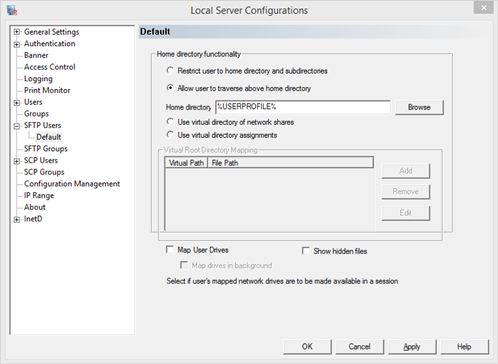
Click on "SFTP Users" > "Default" user.
Select the preferred home directory functionality from the three supported options.
The default choice is to "Allow User to Traverse Above Home Directory".
To restrict the user to the home directory and its sub-folders, select the first option, "Restrict User to Home Directory and Subdirectories".
To restrict users to certain folders and virtualize the directory structure, select "Use Virtual Directory Assignments".
If the SFTP user needs to access a different drives, then make sure the select "Map User Drives" option for that user.
Now to test a basic sftp connection, open up a command line window and type of the following:
sftp user@localhost
where the user can be any valid Windows user with "Log on Locally" rights. "Log on locally rights" can be set under the Windows Administrative Tools > User Rights Assignments.
Please note: Users added under the SFTP Server settings needs to already exist on the server as local users or in the domain as domain users. New Windows user creation and password set/reset are completed via the Windows user management dialogs. All SFTP user authentication is completed by the operating system in conjunction with the domain controller. SFTP configurations made via the Local Fortress SSH Configuration dialog are only for SSH, SFTP and InetD configuration.
After a successful SFTP connection and user authentication process, a "SFTP>" prompt will be displayed. Once at the prompt, enter various sftp commands such as "cd .." to move up the directory structure, "dir" to view the list of files and folder, etc.
To confirm that the SFTP connection has been made, go to Windows Start Menu > Pragma Server Management and launch the Session Manager program. Once the Session Manger dialog comes up, connect to localhost and at this point, you should see the SFTP connection showing pertinent details about the SFTP session.
Adding SFTP Users
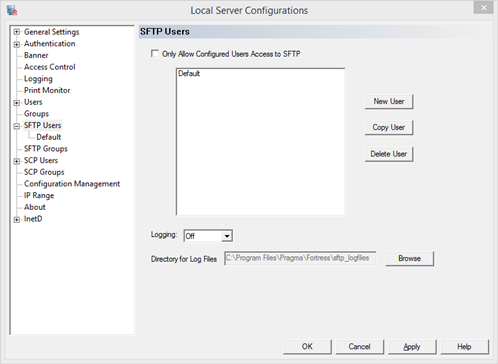
To have sftp users do different operations within their sftp session add that user under the SFTP Users configuration in the Local Fortress SSH Configuration program. Add the user, making sure the name and domain match exactly as they log on to the server.
Troubleshooting tip:
If a user connects with unexpected configuration settings, have the user log on via ssh and compare the USERNAME and USERDOMAIN environment variables to the configured user settings.
Please note: Users added under the SFTP Server settings need to already exist on the server as local users or in the domain as domain users. New Windows user creation and password set/reset are completed via the Windows user management dialogs. All SFTP user user authentication is completed by the operating system in conjunction with the domain controller. SFTP configurations made via the Local Fortress SSH Configuration dialog are only for SSH, SFTP and InetD configuration.
Access Control and Restrict Users
To provide only SFTP access to the Windows server running Pragma Fortress SSH Server and deny other types of access such as ssh, scp, port forwarding, then click on the "Access Control" option in the Local Fortress SSH Configuration pane and select only the desired protocols to allow.
To allow only certain users SFTP access, add those users in the Local Fortress SSH Configuration pane by selecting "SFTP Users" or "SFTP Groups". Add the users and/or groups, then click on the restrict access check box.
SFTP Logging
To turn on SFTP logging, use the drop down menu located under "SFTP Users" option and select the preferred level of logging and set/edit the location where the sftp log files will be created.
Once Pragma Fortress SSH Server has been configured and the InetD service is running, you can connect to the server using any SFTP client such as Putty's psftp, Pragma's GUI SSH Client, FortressCL and Console SSH Client, ssh.exe. Both clients are part of Pragma Fortress SSH Client Suite and included with the server.
If you need further assistance in configuring Pragma Fortress SSH Server, please see http://www.pragmasys.com/products/support for additional resources.
|