|
Secure File Transfer (SFTP) is a ftp-like transfer of files that uses the secure ssh2 data communications. SFTP does not use the ftp protocol. A standard ftp client cannot be used to connect to a sftp server.
The SFTP Users and Groups pages are used to configure SFTP settings for Pragma Fortress SSH Server.
The sftp server is installed with the ssh server. It will automatically launch when a sftp client connects to the server. SFTP access is on by default. SFTP access can be stopped for all users, using the Access Control page, or SFTP access can be allowed by users and/or groups using the SFTP Users and SFTP Groups pages.
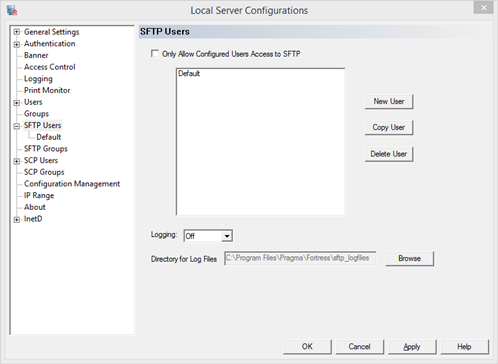
New User - create a new user
Copy User - copy the select user configuration
Delete User - delete the selected user configuration
Logging
Use this list to choose the type of SFTP session logging desired.
Off - No logging.
Transfers - Log only the files transferred and the result of the transfer.
Detailed - Log all commands and results of the sftp session.
Status - Log all events performed by the sftp server. This is the most detailed logging available.
Directory for Log Files
Choose the directory to store sftp log files. The sftp users will need write access to this directory.
User Settings
To configure the sftp related settings for all sftp users, modify the settings for the Default user. To create a unique environment for each user or to grant access to only specific users, create the user and modify their settings individually.
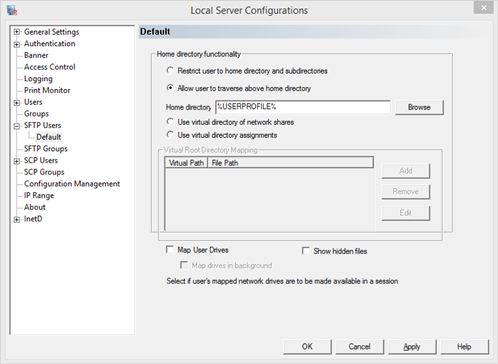
Home directory functionality
Restrict user to home directory or sub-directory
Select this option to restrict the sftp user's access to the home directory and its sub directories. The user will be unaware of the directory structure above the home directory. A current directory query, such as "pwd", will list the home directory as "/" or root level, no matter the actual level of the home directory.
Allow user to traverse above home directory
Select this option to allow the sftp user to traverse to all directories above the home directory if the home directory set above is not a root directory. The user will be aware of the full directory structure. Use the file system to deny/grant user access.
Home directory
Specify the path to the home directory for the default sftp user in this field. This is the directory where the user will start when first connected.
Use virtual directory assignments - Provide an abstract listing of directories that can be located any place on the server.
In this mode the root of the sftp session has no actual physical directory. It is a made up construct by the sftp server. The user is allowed to configure the first level directories to point to specific file paths. This allows the SFTP server administrator to be able to grant access to specific directories to specific users. Consider the following directory tree:
c:\
c:\temp
c:\Document and Settings\localuser
To restrict access to only the localuser and temp subdirectories, the administrator can configure the sftp user to use a virtual root with two subdirectories; one for each of the desired directories. The user will not be able to see or access anything but those specified. Using the above tree as an example, the vroot could be configured as:
UserDir %USERPROFILE%
Temp C:\Temp
When the sftp user connects, two directories will be visible in the root, Temp and UserDir. Traversing into either of these will allow the sftp user to access the contents of the C:\Documents and Settings\localuser and C:\temp directories, any directories beneath them and nothing more.
Map User Drives - make drives mapped for the user profile available within the session
Turn this option on to have drives mapped outside the ssh session be available inside the ssh session.
Map drives in background - map drives in separate thread.
This allows the connection to continue while drives are mapped, since mapping drives can sometimes take a long time. If a drive is needed immediately, then this option cannot be used. If the mapped drives are needed at a later time in the session, use this option to speed up connection time.
Show hidden files - Display hidden files to the sftp user.
Group Management
The Group Management page is used to set configuration settings by group and to grant sftp access by group.
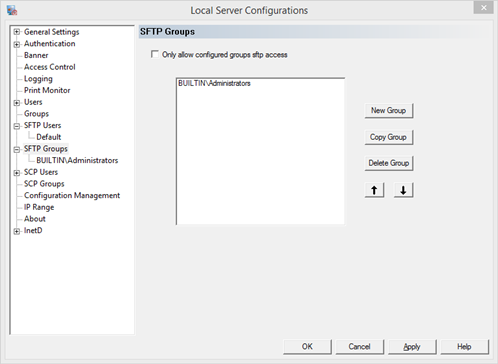
New Group - create a new group. The new group will take the settings of the Default user configuration on the User Management page.
Copy Group - copy the select group configuration
Delete Group - delete the selected group configuration
Up and Down Arrows - Order the group list.
If a user is a member of multiple configured groups, the first group in the list will be used for configuration settings. Move groups up and down to order the groups as needed.
Only Allow Configured Groups sftp access
This option restricts access to the server to only groups who have been listed on this dialog.
NOTE: If both the restrictive check boxes for Users and Groups are checked, then a user must be both a configured user and a member of a configured group; not just one or the other.
|