|
SCP is a secure copy of files using the ssh server as a gateway to encrypt the files. The files are copied through a SSH session launched by the scp client. The scp client launches a ssh session to the server, which launches the scp server. A machine must have the scp client, plus the ssh client to initiate a secure copy. The remote machine must have a scp client, plus a ssh daemon to respond to a scp request. The destination file will retain the file attributes of the source file. The copy can be configured to retain the source file date or use the copy time stamp.
The SCP Users and Groups pages are used to configure SCP settings for Pragma Fortress SSH Server.
The scp server is installed with the ssh server. It will automatically launch when a scp client connects to the server. SCP access is on by default. SCP access can be stopped for all users, using the Access Control page, or SCP access can be allowed by users and/or groups using the SCP Users and SCP Groups pages.
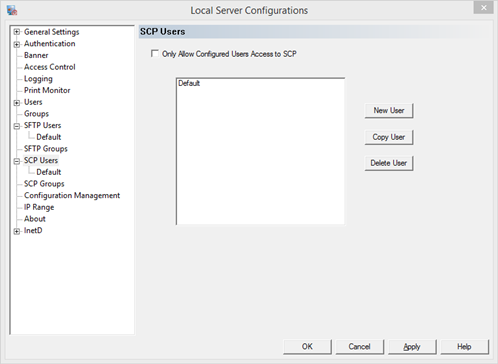
New User - create a new user
Copy User - copy the select user configuration
Delete User - delete the selected user configuration
Only Allow Configured Users scp access
This option restricts access to the server to only users who have been listed on this dialog.
SCP User Settings
To configure the scp related settings for all scp users, modify the settings for the Default user. To create a unique environment for each user or to grant access to only specific users, create the user and modify their settings individually.
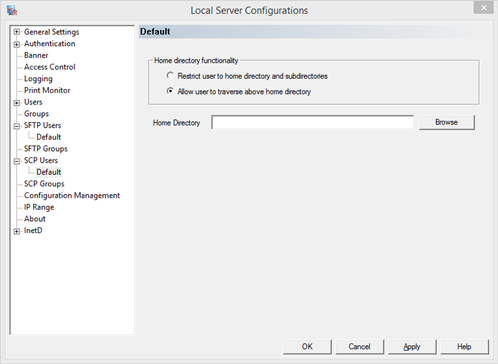
Home directory functionality
Restrict user to home directory or sub-directory
Select this option to restrict the scp user's access to the home directory and its sub directories. The user will be unaware of the directory structure above the home directory. The path of the destination folder is relative to the home directory as root. For example, the command
scp file1 user@server:subdir\file1
will copy the file "file1" to the subdir subdirectory of the home directory, which is the same result of the command
scp file1 user@server:\subdir\file1
Allow user to traverse above home directory
Select this option to allow the sftp user to traverse to all directories above the home directory if the home directory set above is not a root directory. The user will be aware of the full directory structure. Use the file system to deny/grant user access. The path of the destination folder is absolute for all files. For example, the command
scp file1 user@server:subdir\file1
will copy the file "file1" to the subdir subdirectory of the home directory, whereas the command
scp file1 user@server:\subdir\file1
will copy the file to the subdir subdirectory off the root of the home drive.
Home directory - Specify the path to the home directory for the default sftp user in this field.
Group Management
The Group Management page is used to set configuration settings by group and to grant sftp access by group.
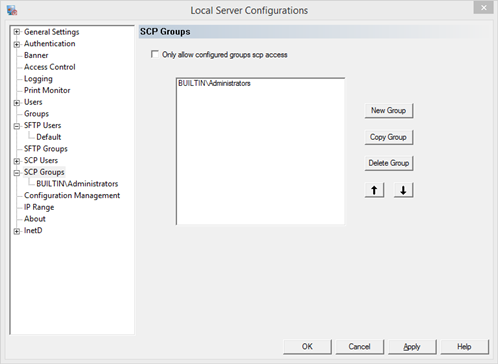
New Group - create a new group. The new group will take the settings of the Default user configuration on the User Management page.
Copy Group - copy the select group configuration
Delete Group - delete the selected group configuration
Up and Down Arrows - Order the group list.
If a user is a member of multiple configured groups, the first group in the list will be used for configuration settings. Move groups up and down to order the groups as needed.
Only Allow Configured Groups scp access
This option restricts access to the server to only groups who have been listed on this dialog.
NOTE: If both the restrictive check boxes for Users and Groups are checked, then a user must be both a configured user and a member of a configured group; not just one or the other.
|