|
The General Settings page is used to configure the basic settings for a session.
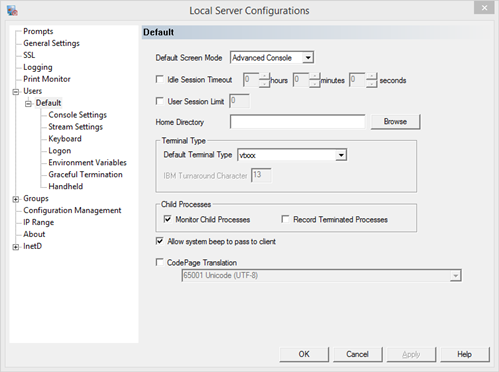
Default Screen Mode - the way the session will draw output to the client
Select a screen mode from the following choices:
Advanced Console - the server provides a console for both input and output. All output is wrapped with an external library, sending it directly from the application to the client. Color, cursor, and screen formatting is handled by the server. A scroll back history is available, as well as the ability to run console applications. This mode is ideal for administrative sessions, where full command shell functionality is necessary.
Full Console - the server provides a console for both input and output. The console is scanned by the server for changes and only partial screens are sent to the client. Color, cursor, and screen formatting is handled by the server. A scroll back history is not available. The screen will always stay the size of the client window. This mode is ideal for hand held connections.
Stream - the server provides a console for input, but all output is sent to the client without interpretation. The output is sent in a stream of raw data. Any emulation sequences required by the client should be handled by the client. If the client does not handle the emulation, neither color nor cursor movement is possible. A scroll back history is available.
Full Stream - the server handles all input and output as though it was a stream. No input or output is interpreted by the server. The application must have stream i/o capabilities or it will fail to run. This mode is designed for applications that will handle all client interpretation and needs the server to handle the network protocol communication.
Idle Session Time Out - the server will close the session after the configured idle period
Configure a time period here that will not interfere with normal user idle activity. The idle time is the time without input from the client. If the server is processing, but there is no interaction by the client the server will disconnect. The configured idle session timeout period for the Default user will be used to log off any session sitting at the logon prompt without logging on.
An event is recorded in the event log if a session is closed due to idle activity.
User Session Limit - the maximum number of sessions that this configured user will be allowed
If this value is higher than the maximum session value in General Settings, then the General Settings limit will override this value.
Home Directory - the initial directory when a user connects
This value overrides the home directory specified in the Windows User Management.
Default Terminal Type - assign a terminal type that will be used if the client does not negotiate a valid type
If a terminal type is negotiated by the client, this value is ignored.
Child Processes
Monitor Child Processes - monitor any processes launched within the session
If the processes are still running when the session closes, Pragma TelnetServer terminates the processes. This option should be kept on unless a process should remain even after the telnet session closes, for example, an administrator connecting to kick off a batch file, then exiting. If the Monitor Child Processes option is turned off, or if Monitor Child Processes is not properly exiting applications, see Graceful Termination for more information about configuring applications to shutdown properly in when a session closes.
Record Terminated Processes - record an event in the Windows Event Viewer
A success or error event will be written to the Windows Event Viewer under the Windows Applications and Services -> Pragma TelnetServer log. Use this if feature if processes are not getting closed when a session closes, or if unexpected processes are closed.
Allow System Beep to Pass Through - pass an application beep to the client
If one of the Beep implementations are in use, allow the beep to pass to the client. If the client should never get a beep from the server, turn this off. See Beeping for more information.
Code Page Translation - use a code page other than the defined user shell code page
To run applications in languages other than English, the server, application, and client must all use the same character set. This option allows the server to recognize a code page other than the OS value and send the appropriate settings to the client. The ideal setting for using foreign language support is UTF-8 for all components: application, server, and client. If the application or client does not support Unicode, then set all components of the session to the same code page. The environment variable CPTRANSLATE will note if there is any translations in use.
|