|
Console settings will apply to any session run in Advanced Console or in Full Console Mode, set on the User General Settings page. Use this page to set how the screen will look and behave when a user connects in one of the console modes.
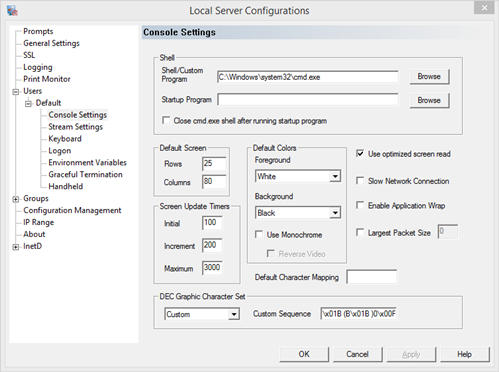
User Shell - the program run when a user connects
The user shell is the main program run when a user connects. Enter the program with full path, without spaces or in 8.3 notation. This can be either the standard cmd.exe user shell, a Unix like shell, such as bash or ksh, or a custom application such as sapcnsl.exe for SAP. If the program does not require any initialization, such as setting environment variables or running multiple programs, set the program as the user shell to make sessions more efficient.
Startup Program - assign what will happen when a client first connects
The startup program is a batch file, command, or login script to run before the user gets control. The program or batch file should include full path in quotes or in 8.3 notation, unless the program exists in the configured home directory on the General Settings page. A login script can be specified in either in the Windows User Management, or under Console Settings. To avoid conflicts, Windows logon script setting should be turned off if the user is to run a telnet logon script.
Close cmd.exe shell after running startup program - close the user shell after running the startup program
With this option checked the server will run the user shell and startup program then exit the session. This will prevent any user from gaining access to the user shell.
Default Screen
These values will define a default screen size. If a client that supports NAWS connects, the negotiated windows size will override these values.
Default Rows -Specify the default number of rows in the console. NAWS will override this value.
Default Columns - Specify the default number of columns in the console. NAWS will override this value.
Screen Update Timers
These three values set how often the server will scan for a screen change if Full Console mode is in use. If a client loses characters, decrease these values. If the client seems to show extra characters, increase these values.
Wait Init -The minimum time in milliseconds the server will wait before checking for a screen update.
Wait Increment - The increment used to count up from the minimum time to maximum time
Wait Max -The maximum time in milliseconds the server will wait before checking for a screen update.
Default Colors
Colors can only be defined for clients that have color support. If the client does not support colors, the colors will map to the closest shade possible.
Default Foreground Color - the default foreground color the user will receive in color mode
Default Background Color - the default background color the user will receive in color mode
Use Monochrome
Specify whether to give the user monochrome output. The default monochrome color combination is white on black. This is a more efficient setting for clients that do not support color. The server will not send any color sequences, even if the server is running in color mode.
Reverse Video - monochrome output will be in reverse video, black on white.
Use optimized screen scraper - use this feature to send less data to the client
A screen scraper is an algorithm to send a picture of the console window. The optimized screen scraper sends only the differences between the console window and the previous screen sent.
Slow Network Connection - send minimal data to the client
To reduce redraw problems due to information being lost by slow clients. This option will turn the client cursor off and will not send any color sequences, resulting in a monochrome session.
Enable Application Wrap - embed Pragma's wrapper technology automatically
Application wrap enables character or console based programs that have difficulty running in a telnet or terminal session, to run on Windows. With this option on, the wrap program will not have to be run explicitly. This option is on by default. This feature will allow beeps and console applications that switch console buffer to run automatically without having to run with our separate program, wrap.exe.
Largest Packet Size - restrict the packet size
Specify the largest packet size sent to the client. To use the default packet size, set it to 0. If information appears to be getting lost due to slow connections, the packet size should be lowered. The minimum value should not be lower than 500, and the maximum value depends on the client screen size. The maximum amount of information that could be sent is 6 * rows * columns. For example, for a 18x25 console, 12,000 bytes of information could be sent. If portions of the screen are not being drawn, try setting this value to less than maximum, then increase or decrease, depending on the results.
Default Character Map - define how characters are displayed to the client
If graphic characters are not displaying correctly on the client, a character map can be used to reassign the characters sent to the client.
The character map is defined in the file charmap.ini, installed to the program directory of the installation folder. The default mappings are:
VTXXX - recommended for telnet clients using a VT emulation
MICROSOFTCLIENT- recommended for the Windows telnet client
VT220 - recommended for true VT220 terminals
VT320 - recommended for true VT320 terminals
WYSE - recommended for true WYSE terminals
These mappings have been tested and work for most clients. If nothing is defined for a default character map, the server will use the mapping that most closely matches the negotiated terminal type. If a value is defined, it will override the negotiated value.
If a client appears to show unexpected characters, a new character map can be defined using the charmap.ini file, and setting that heading as the default character map in this box. Values can be enclosed in square brackets ([ ]) or can be the heading alone.
See Dynamic Character Mapping for more information.
DEC Graphic Character Set
Graphic characters are the box line characters. The available characters can be set by the initialization string of the DEC graphic character set, if the client supports the sequence. The default set is Supplemental. Changing the initialization sequence, by changing the character set, might change how a client displays graphic characters, giving the user a better graphical experience.
Ascii - consists of characters with decimal values 0-127.
Supplemental - contains 94 graphic characters, including accented characters for many national languages.
Special - contains 94 graphic characters, including letters, numbers, special symbols, and line-drawing characters.
Technical - contains 94 graphic characters, including symbols and characters used in technical applications.
User Preferred - a variation of the Supplemental set.
ISO Latin - contains 96 graphic characters, including many of the same characters as the DEC Supplemental Graphic set.
Insert ACS - contains 94 graphic characters, including accented characters for many national languages. Characters different from Supplemental.
Custom - Send an initialization string that is unique to the client.
Custom Sequence - The sequence to be sent when the Custom option choice is selected. This is ignored if one of the predefined sequences are sent.
Tips:
•To not send any initialization string, select Custom in the drop list and empty the edit box for Custom Sequence.
•Most clients do not have a configurable option as to which sequence should be sent. Trial and error is the best way to determine which sequence should be sent.
•Use this option with the Dynamic Character Mapping feature to get the client output to be as eye pleasing as possible.
|