|
Pragma TelnetServer (Build 9 & up) supports the Secure Sockets Layer (SSL) protocol to ensure data security. Therefore, when a SSL-capable telnet client connects to Pragma TelnetServer, data exchanged between the client and the server is no longer in clear-text. Instead, the data is encrypted using the SSL protocol. Both SSL capable and regular telnet clients can connect to the Pragma TelnetServer at the same time and the sessions will be handled accordingly.
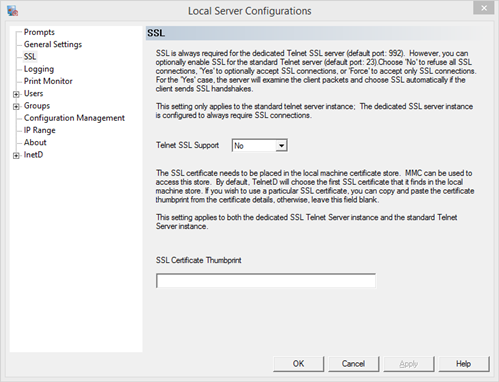
Telnet SSL Support - select whether SSL support is enabled
Choose either yes or no to allow SSL connections to be made.
SSL Certificate Thumbprint - the thumbprint of the certificate configured under Windows
If this field is left empty, Pragma TelnetServer will access the Windows Local Machine certificate store and use the first SSL certificate listed. To use a different certificate, copy the thumbprint of the certificate into this box
To locate the default certificate thumbprint:
1.Launch the Microsoft Management Console (MMC),either from the command prompt or the Run option in the Start Menu.
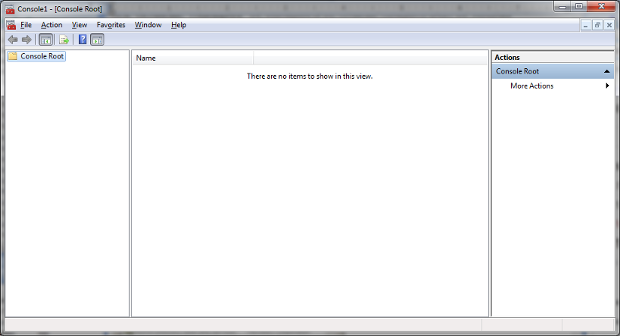
2.From File menu, select Add/Remove Span-in
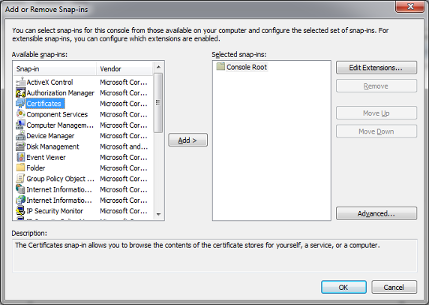
3.Click on the Add button and then select "Certificates" from the Add Standalone snap-ins dialog
4.Select "Computer" for account option and click Next.
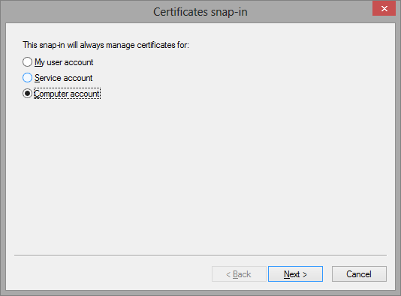
5.Choose Local Computer and click Finish.
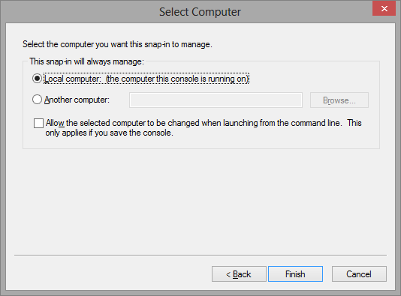
6.Click OK to close the snap-in dialog.
7.Once the Certificates snap-in has been added, expand the tree and select the Personal folder. Expand the Personal folder and select Certificates.
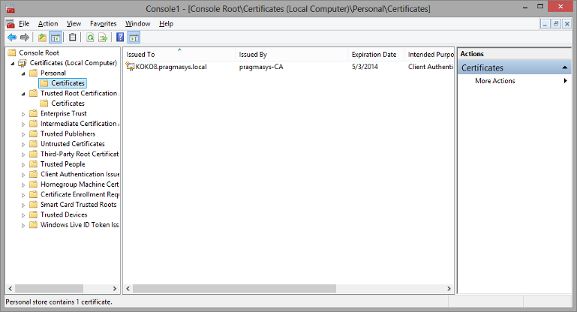
8.On the right pane of the dialog, double click on the listed certificate (under "issued to" column) which will open up a tabbed dialog. Click on the Details tab and scroll down to locate the certificate thumbprint.
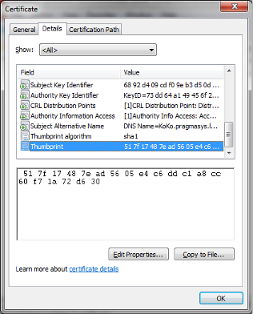
Please note that the certificates need to be in the "Personal" container. If the certificate is obtained through a certificate service, the Certification Authority certificate should be placed in the "Trusted Root Certificate Authorities" container. This won't be necessary if the certificate is obtained from an established certificate authority such as Verisign or Thawte, or if the certificate is obtained from the Windows domain certificate service (the CA certificates will already be loaded). CA certificates also aren't necessary if the certificate is self-signed from a tool like makecert.
Certificates can be obtained from a service, loaded from a certificate server on the domain, or self-signed.
Verisign, www.verisign.com, is one of many certificate services available to get a certificate.
Windows server installation disks contain the option to install a certificate server. The process is different for different versions of windows server. Please see the server installation documentation for specific instructions. If a domain certificate server is installed, machines will automatically be loaded with the appropriate CA and host certificates. Also, certificates can be requested by using the Certificates mmc snap-in context menus or via the certificate service's web interface.
For self signed certificates, you can use one of the Microsoft's tools to create a certificate. For ssl, the intended purpose needs to include "Server Authentication". Different tools will activate this property in different ways. For makecert, the parameter "-eku 1.3.6.1.5.5.7.3.1" needs to be included (the numbered string is the numerical representation for the "Server Authentication" purpose.
An example key generation is:
makecert -r -pe -n CN="machine_name" -eku 1.3.6.1.5.5.7.3.1 -ss my -sr localmachine -sky exchange -sp "Microsoft RSA SChannel Cryptographic Provider" -sy 12
Here is a writeup from the web: http://tcle.wordpress.com/2008/05/20/creating-a-self-signed-ssl-certificate-without-a-mess-of-makecertexe-using-ssl-diagnostics-tool/
|