|
ssh.exe
This client was designed to work especially with Pragma Fortress SSH Server. However, the Console SSH Client will work great with any ssh server than follows the RFC standards.
Usage
ssh [ hostname | /I ] [options]
Either the servername should be entered on the command line, or the /I (capital "i") switch should be used to prompt the user for servername. All command line switches are case sensitive.
|
-l user
|
Log in using this user name, interactive user used by default
|
|
-a
|
Disable authentication agent forwarding
|
|
-x
|
Disable X11 connection forwarding
|
|
-i
|
Identity for RSA authentication (default: ~/.ssh/identity).
|
|
-I
|
Interactive mode
|
|
-t
|
Tty; allocate a tty even if command is given.
|
|
-T
|
|
|
-v
|
Verbose; display verbose debugging messages.
|
|
-V
|
Display version number only.
|
|
-q
|
Quiet; don't display any warning messages.
|
|
-f
|
Fork into background after authentication
|
|
-e char
|
Set escape character; 'none' = disable (default: ~).
|
|
-c cipher
|
Choose the encryption algorithm
in SSH1: none, des, 3des, blowfish
in SSH2: none, 3des-cbc, blowfish-cbc, arcfour, cast128-cbc, aes128-cbc, aes192-cbc, aes256-cbc
|
|
-m macs
|
Specify MAC algorithms for protocol version 2
hmac-sha1,hmac-sha1-96,hmac-md5,hmac-md5-96,hmac-ripemd160
|
|
-p port
|
Connect to this port. Server must be on the same port.
|
|
-P
|
Don't use privileged source port
|
|
-L listen-port:host:port
|
Forward local port to remote address
|
|
-R listen-port:host:port
|
Forward remote port to local address
|
|
|
These cause ssh to listen for connections on a port, and forward them to the other side by connecting to host:port.
|
|
-C
|
Enable compression.
|
|
-g
|
Allow remote hosts to connect to local port forwarding
|
|
-o 'option'
|
Options that should be passed to the ssh client. Options that are allowed are defined in the config file of the ssh client. See SSH Configuration File for more info.
Special note that there should not be any space between the o and the option.
The o option can be used as often as necessary to pass all the desired ssh options.
|
|
-1
|
Force the SSH1 Protocol
|
|
-2
|
Force the SSH2 Protocol
|
|
-s
|
Invoke command (mandatory) as SSH2 subsystem
|
|
-A password
|
Use this password to login.
|
|
-B
|
Specifies the forcing of a password change to the provided new password
|
|
-r printer
|
Capture printer for client-side printing
|
|
-K
|
Use gssapi-with-mic Kerberos Authentication
|
|
-k
|
Use gssapi (without mic) Kerberos Authentication
|
|
-N
|
Use gssapi-with-mic Windows NTLM Authentication
|
|
-n
|
Use gssapi (without mic) Windows NTLM Authentication
|
|
-W
|
Use Pragma Legacy Windows NTLM Authentication
|
|
-F filename
|
Start session running client script file
|
|
-4
|
restrict to IPV4 addresses
|
|
-6
|
restrict to IPV6 addresses
|
|
-y
|
Force a password change
|
|
-oCertHash=CertHashValue
|
Certificate thumbprint of a certificate in Windows Store for Authentication. This is a special options flag, not configurable in the configuration file.
|
These arguments can be changed from their default values, using the configuration file, config, and the ssh.ini file.
Key Features
Supports both SSH1 and SSH2 protocols
Uses proven RSA\DSA public key cryptography
Encryption ciphers supported: none, 3des, blowfish, 3des-cbc, blowfish-cbc, aes128-cbc, aes192-cbc, aes256-cbc, aes128-ctr, aes192-ctr, aes256-ctr
Data Compression at nine selectable levels
Multiple authentication methods
Any authentication standard of ssh is supported including password authentication
Local and remote port forwarding
TCP/IP port forwarding is supported allowing other insecure protocols like SMTP, POP, TELNET etc to run over a secure ssh session
Full keyboard and mouse support over ssh
International keyboard support over ssh. See Console SSH Client Mouse Support for information on how to set this up.
Printing support through a ssh session
See Printing Options for more information.
Console Application
Pragma Console SSH Client can be used within a ssh session, allowing the user to have nested ssh sessions.
ANSI, VT100 and extended keys of VT420 emulation
Supports VT and ANSI emulations. When connected to Pragma Fortress SSH Server, a proprietary emulation can be used, which provides a full key event to the server, allowing key modifiers to be passed to the server. See Console SSH Client Mouse Support for information on how to set this up.
Full ANSI Color
User defined ALT key mapping
Using the ssh.ini file, a user can map the ALT key to any key. The keywords ESC or CTRL can be added to another key to send a key combination. For example, ALT=CTRL-A will send the default key sequence for the Pragma Fortress SSH Server. See more on ssh.ini.
Automated ssh sessions using scripts
The scripting will start after the client has been authenticated by the server. The client will read the file given on the command line and redirect it to the telnet server. The script file follows a wait/send syntax, meaning that the script will define a phrase to look for and when found will respond with the designated response.
Designate a phrase to wait for with a WF: as the first 3 characters of the line.
To add comments, use a # as the first character of the line Empty lines are allowed.
Any line that has characters, and does not start with either the WF: or # will be sent to the server.
Special characters can be entered with the following:
\n - line feed
\r - carriage return
\t - tab
To send an empty line to the server enter the value \r\n.
Here is an example of a file for input:
#wait for command prompt
WF: >
#send command to run server side script
runscript
#wait for command prompt to return
WF: >
#exit
exit
Log ssh session output to a file
Log all output received by the server to a text file. This will include emulation sequences.
Terminal window resize during session
Terminal window can be resized dynamically by changing the size properties of the console window. Any fonts supported by the console can be chosen.
Certificate Support
The "certhash" option uses the default fingerprint of a certificate stored on the client machine.
For Client Authentication certificate
1.Generate a user certificate using your chosen certificate authority
2.Install the user certificate on the client computers under the Users->Personal store
a.Launch the Microsoft Management Console (MMC),either from the command prompt or the Run option in the Start Menu.
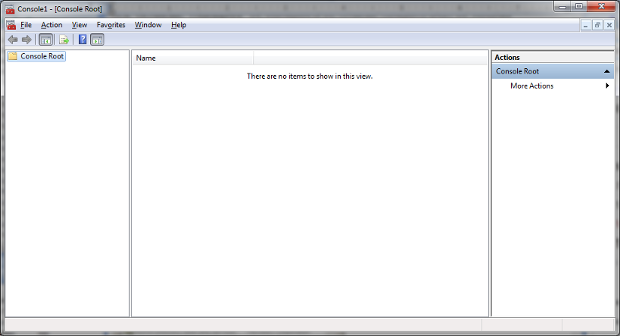
b.From File menu, select Add/Remove Span-in
c.Click on the Add button and then select "Certificates" from the Add Standalone snap-ins dialog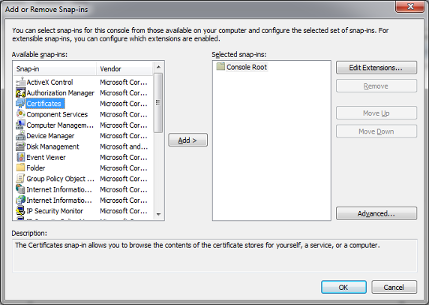
d.Select "My user account" for account option and click Next.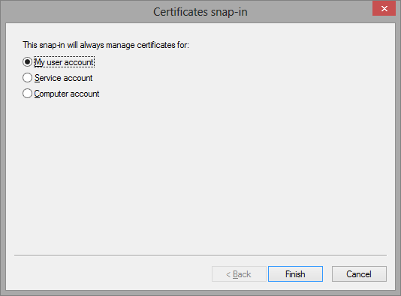
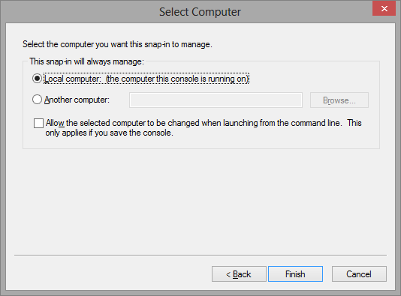
e.Choose Local Computer and click Finish
.
f.Click OK to close the snap-in dialog.
g.Once the Certificates snap-in has been added, expand the tree and select the Personal folder. Expand the Personal folder and select Certificates. 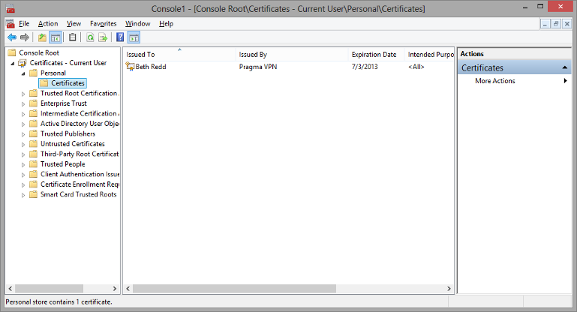
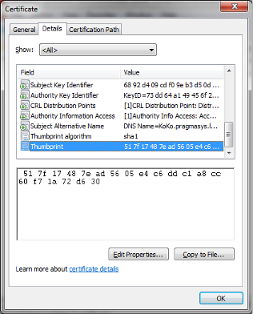
3.Copy the thumbprint from the certificate details to use for the certhash parameter. On the right pane of the dialog, double click on the listed certificate (under "issued to" column) which will open up a tabbed dialog. Click on the Details tab and scroll down to locate the certificate thumbprint. Remove all the spaces from the thumbprint before adding to the parameter.
If the certificate is obtained through a certificate service, the Certification Authority certificate should be placed in the "Trusted Root Certificate Authorities" container.
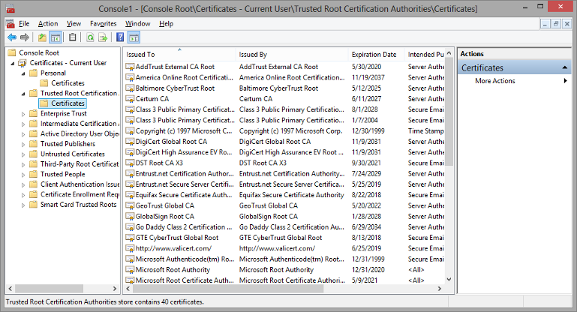
This won't be necessary if the certificate is obtained from an established certificate authority such as Verisign or Thawte, or if the certificate is obtained from the Windows domain certificate service (the CA certificates will already be loaded). CA certificates also aren't necessary if the certificate is self-signed from a tool like makecert.
Certificates can be obtained from a service, loaded from a certificate server on the domain, or self-signed.
Verisign, www.verisign.com, is one of many certificate services available to get a certificate.
Windows server installation disks contain the option to install a certificate server. The process is different for different versions of windows server. Please see the server installation documentation for specific instructions. If a domain certificate server is installed, machines will automatically be loaded with the appropriate CA and host certificates. Also, certificates can be requested by using the Certificates mmc snap-in context menus or via the certificate service's web interface.
For self signed certificates, you can use one of the Microsoft's tools to create a certificate. For SSL, the intended purpose needs to include "Server Authentication". Different tools will activate this property in different ways. For makecert, the parameter "-eku 1.3.6.1.5.5.7.3.1" needs to be included (the numbered string is the numerical representation for the "Server Authentication" purpose.
An example key generation is:
makecert -r -pe -n CN="machine_name" -eku 1.3.6.1.5.5.7.3.1 -ss my -sr localmachine -sky exchange -sp "Microsoft RSA SChannel Cryptographic Provider" -sy 12
Here is a writeup from the web: http://tcle.wordpress.com/2008/05/20/creating-a-self-signed-ssl-certificate-without-a-mess-of-makecertexe-using-ssl-diagnostics-tool/
|