|
Pragma TelnetServer provides client-side printing from a session. Client printing is not supported by all telnetclients, so it is important to make sure that the client being used will support printing from a session. The Console TELNET Client, shipped with Pragma TelnetServer, and FortressCL, Pragma's GUI client available from Pragma Systems, support client-side printing.
To setup Printer Monitoring, configure a printer on the server. This information can be found in the Windows documentation. We recommend a Generic/Text Printer on LPT1 or LPT2. Most DOS programs usually only support LPT1 or LPT2 and usually format their own output for the printer.
Next, configure Pragma TelnetServer to monitor the printer port setup on the OS for printing. It is very important to understand that no print jobs will print locally on the server through the configured port as long as print monitoring is turned on.
What follows are step-by-step instructions to set up remote printing, and also a list of rules\restrictions that must be observed.
Step-by-Step Instructions:
On the Pragma TelnetServer machine:
1.Create a Generic\Text Printer
2.Open Control Panel -> Printers
3.Click on "Add Printers"
4.Select "Local Printer"
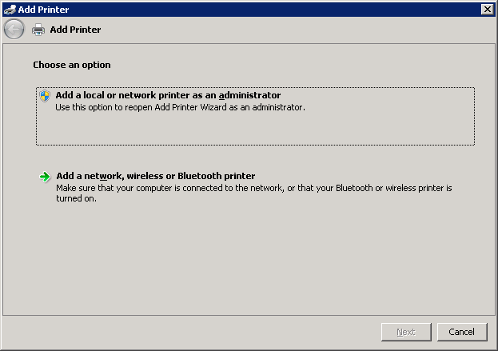
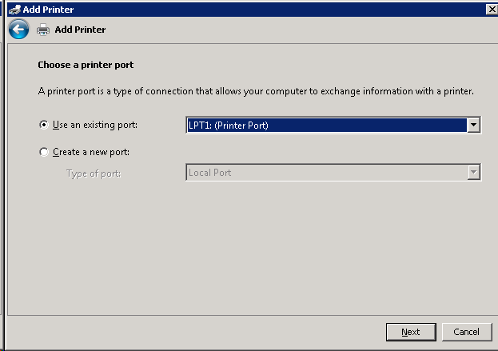
5.Select a physical port that is not in use by another program.
6.Use the Generic/Text Only printer driver.
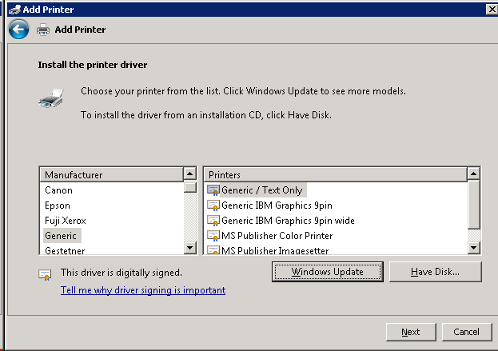
7.Choose either to replace or use the current driver.
8.Name the printer anything desired.
9.Do not share the printer.
10.Turn off Use as Default Printer.
Testing of the port can be done by sending output to the port to view if the document shows in the printer queue. Open a command prompt, and type"dir > port".
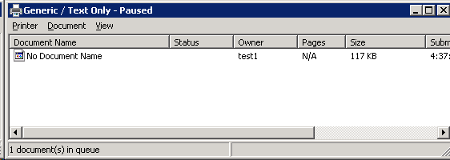
Once the printer queue successfully collects a document, go to the Print Monitoring management of the Local Server Configuration program to enable printing through the server.
1.Check "Enable Print Monitoring" check box.
2.Click "Add" under Printer Ports
3.Select the number and the type (parallel or serial) for the port on which the Generic\Text Printer was configured.
4.Check the "Send Form Feed" box.
5.Click "Apply". Answer yes to restart the Spooler Service, when asked. Click "OK".
6.Click OK to exit.
Testing can be done the same as Item 2 to confirm that the document goes to the configured Spool directory after printing. If the configured Spool Directory is open in any other application, spooling will fail.
Connect with a client that supports printing
Using Pragma's Console TELNET Client.
Connect to Pragma TelnetServer with a client with the printer available. Check the client documentation.
To test printing in the session, select or create a small .txt file, and execute the following command:
copy file.txt port_configured_under_print_monitoring
Pragma TelnetServer will redirect the output to the specified client printer.
Rules\Restrictions
•The port created on the server as the Generic\Text Printer must be an actual, physical port. Other devices cannot use it while Print Monitoring is enabled. We recommend LPT1 or LPT2, because most DOS programs usually only support LPT1 or LPT2 and usually format their own output for the printer.
•Jobs cannot be sent too quickly to the port or the port will be lost. This is an Windows limitation.
•Users must have at least Change access to the Spool and Save directories.
•On the client, the printer name must not contain spaces, or the name should be included in quotes. (For example, rename "EPSON STYLUS" TO "EPSON")
•Finally, it is imperative that no 2 users connect to the Pragma TelnetServer with same logon name at the same time and try to print a document.
Troubleshooting
The job goes to the SaveDir but doesn't print to the client printer.
The client printer isn't configured right. Make sure to capture the printer port on the client side. See above.
"Unable to print" or similar errors.
The server printer isn't configured correctly.
When printing a large number of jobs, some jobs are getting lost.
The application is printing the jobs too fast. The jobs are getting to the port too quickly, causing a port error. Slow down how the jobs are being sent to the printer, either by printing one large job or adding a delay between jobs.
Print jobs are printing to the wrong client.
Users are probably logging on with the same username. The printing process is outside of the session, so the username is used to distinguish between sessions. Users cannot logon with the same username.
When troubleshooting printing problems, track a print job through each stage of printing.
1.Print job leaves process that prints. Print job will appear in Print Queue for General / Text Only printer port being monitored.
2.Pragma TelnetServer prints the job. With the "Save Jobs" option on, the print job is saved in the appropriate directory. The SpoolDir cannot be used to view the jobs as they spool.
3.The client receives the job. The client captured printer queue contains the job.
4.The client prints the job. The client printer prints the job.
|