|
There are multiple logging options with Pragma TelnetServer, including input logging to HTML and text files, logging to the Windows event logs, output logging, and troubleshooting logging.
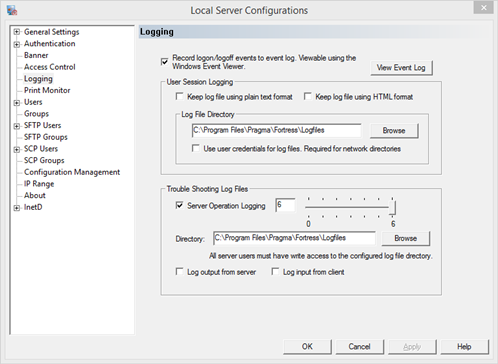
Record Logon/Logoff events to Application Event Log - record events to the Event Viewer
Configure whether Pragma TelnetServer should create entries in the Windows logs whenever users log on or off. These entries can be viewed using the Windows Event Viewer, under Windows Applications and Services. Event explanations are available in the Event Details, viewed by highlighting the event, and selecting View->Details; from the menu.
Keep log file using plain text format - create log files in a simple text file
Check this box to save log files in ASCII text format.
Keep log file using HTML format - create log files in a web page format
Check this box to save log files in HTML format, viewable through a web browser.
Log File Directory - the directory where log files will be saved
Specify the directory for saving log files. In this directory, a subdirectory will be created for each day a telnetconnection is made. Within that directory the log files will be saved with the naming convention: username.MMDDHHMMSS.PID.HTML or username.MMDDHHMMSS.PID.txt, where PID is the process id of the current server process listed as the Server PID in Session Manager.
Use User Credentials for log files - log files are written as the telnet user
Check this box to have log files created by the user logged into the server. By default log files are created by the LocalSystem account so that users do not have to be granted read and write permissions to the log file directory. If the log file directory is located on another machine, requiring network authentication, the LocalSystem account cannot be used, so this box must be checked. This box can also be checked if user context is preferred and permissions are granted to the log file directory.
Troubleshooting Log Files
Log Session Output Data - logs all data written by the server to the client, including emulation sequences
Check this box to have all output sent from the server written to a file. The file will be created in the configured directory with the filename telnetoutPID.txt, where PID is the process id of the current server process listed as the Server PID in Session Manager. This data will not be formatted in anyway.
Log Session Input Data - logs all data written by the client to the server, including emulation sequences
Check this box to have all output sent from the server written to a file. The file will be created in the configured directory with the filename telnetinPID.txt, where PID is the process id of the current server process listed as the Server PID in Session Manager. This data will not be formatted in anyway.
Server Operation Logging - logs steps the server is following, combines input, output, protocol, and additional helpful information
Set the level to a value that will give you the necessary information. The higher the level the more information. Server operation logging will slow down operation, so it should be on only when troubleshooting a specific issue.
Directory - the directory for all troubleshooting log files
Specify the location for the troubleshooting log files. The telnet users will need write access to this directory to record all information.
|