|
The General Settings page is used to make modifications that will apply to all sessions connecting. All of these settings, except for the Maximum Connections, will take affect for the next session connected.
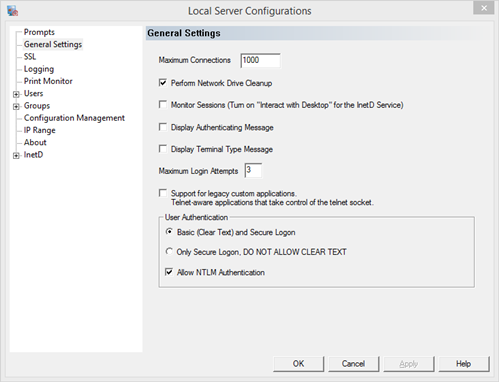
Maximum Connections - the number of concurrent connections allowed to the server
Enter the maximum connections that TelnetServer will accept at one time. This change will not take affect until all sessions have been disconnected.
Perform Network Drive Cleanup - remove all network drives mapped during the session
TelnetServer will by default disconnect any network drives that were created during the telnet session. For example, suppose a user connects to the server and issues the following NET USE command:
NET USE X: \\SERVER\SHARE
This drive letter (X:) will be available to the telnet user in his session, and also to anyone else connected to the server. When the user exits the session, Pragma TelnetServer will disconnect drive X:, since it was created in the telnet session. Other network drives will not be affected.
In some situations, an administrator may want to remotely NET USE a drive from a telnet session, but then have that drive remain available for other users when he exits the session.
NOTE: Mapped drives for multiple users is not supported by Windows. Some inconsistencies may appear for users. Drives may be listed as unavailable or not listed at all, even though a user can access it. Some drives may be listed as available, even though a user cannot access it. This is an issue with Windows.
Monitor Sessions - view the actual session console window on the server desktop
Check this box and turn on the "Allow Service to Interact with Desktop" option for the Pragma InetD Service, under the Windows Services Snap-In, to have a console window open for each active connection to the server. The windows will flash then minimize so they do not clutter the desktop. The console windows can be used on the server side to take control of a session.
Maximum Login Attempts - the number of times a user can try to log on before closing the session
Configure the maximum number of failed logins before a user is disconnected from the server. The user will need to make a new connection if not logged on successfully before this number is reached. This does not lock out the user, unless the operating system is configured to lock out users after a number of attempts. Each telnet attempt will count as an operating system attempt. If there is no operating system lock out the user can continue to logon without issue.
Display Authenticating Message - display the authenticating status message
Check this box to display the authenticating message during logon. If there is a delay between the time the user enters their information and the configured user shell starts, turn this message on to see if the delay is occurring due to a long authentication period.
Display Terminal Type Message - display the message on terminal type after type negotiated
Check this box to display the terminal type that is set during logon.
Support for legacy custom applications - required for any application that is "telnet-aware" and writes directly to the telnet socket
Older applications that write directly to the socket to send data to the client use the environment variable PRAGMSYS_INETD_SOCK. Newer versions of Pragma TelnetServer removed this variable. Turn on this option to return the setting to allow older applications to run without changes. Applications that are still in production should be changed to use the Named Pipes for a more efficient implementation. See Programming for examples on using the Named Pipes.
User Authentication - set the forms of authentication that are allowed
Basic (Clear Text) and Secure Logon
Accept both encrypted and clear text log ons from telnet clients. The secure logon uses our proprietary encryption and can only be used with Pragma Console Telnet Client. The server will allow any clear text connection as well as the encrypted connection.
Only Allow Secure Logon, DO NOT ALLOW CLEAR TEXT
Restrict all connections to encrypted. The secure logon uses our proprietary encryption and can only be used with Pragma Console Telnet Client. The client will be presented with a message indicating that only secure logins are permitted.
Allow NTLM Authentication
NTLM is an authentication protocol used in various Microsoft network protocol implementations. NTLM is used throughout Microsoft's systems as an integrated single sign-on mechanism.
All Pragma clients support NTLM. The interactive user information will be set as the remote user context, using Windows certificate based authentication. The User is not prompted for username or password. NTLM authentication cannot be used to logon as a user other than the client interactive user.
|