|
Telemote Screen provides you full remote desktop by launching telemote viewer. A connected session to a Windows machine is shown below. Toolbar at the top within the session provides various configuration settings and changes for the session. The 2-file icon in the middle allows file transfer to the remote machine. The 4-arrow square icon changes the session to full-screen; selecting the icon again restores the session back to the current size. The screen monitor icon provides selecting among the multiple display monitors if the remote machine has multiple monitors. 4-color icon provides selection of color bits.The circle icon at the end allows reboot of the remote machine.
.png)
.png)
The top left drop down menu of a connected machines shows various key features which are also available through the tool bar icons:
Connection options - Shows various connections options active for the current session. Options can be changed in this panel also.
Connection info - Shows current connection information and protocol version.
Transfer files - Allows two panes file transfer to the remote machine. Left pane is the local machine and right pane is the remote machine. For a TelemoteOnly license user, this is the way to transfer files as SFTP file transfer options is not available.
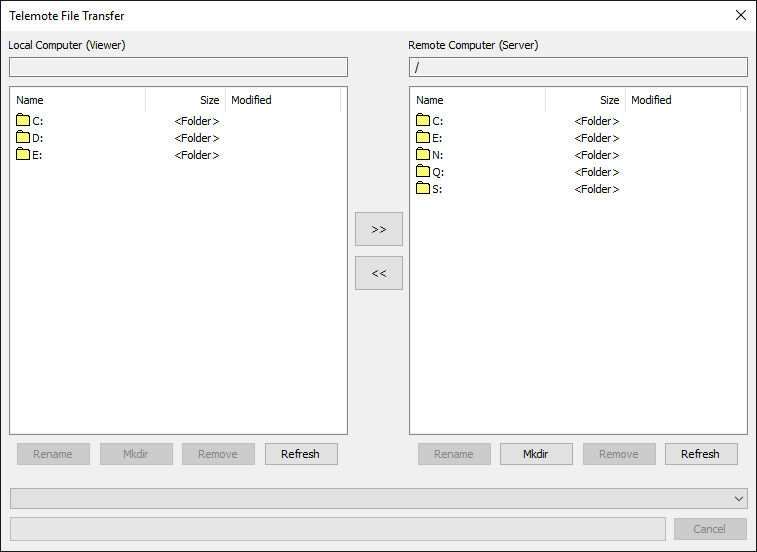
File transfer panel to remote machine from a viewer session's file transfer option.
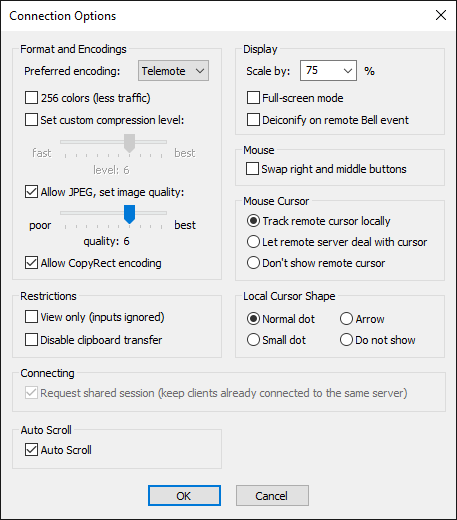
Connection Options for a current Telemote viewer session. Options can be changed in this panel.
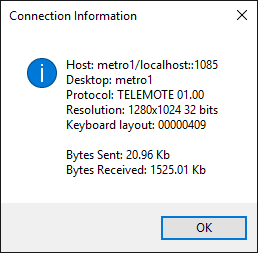
Connection Information and Protocol used for a Telemote session.
|