|
Install Pragma Fortress SSH Server on your Windows server. (To download the 14-day trial version, please click here.) To configure the SSH Server settings, go to the Windows Start Menu > Pragma Server Management, then select "Local Fortress SSH Server Configuration".
The server is designed to accept ssh connections immediately after install. To test, before making any configuration changes:
Open a command prompt.
Type ssh localhost
Either a password prompt will appear or the user will be logged on using the Kerberos authentication.
The session will appear the same, except the window title will say "ssh localhost" and the Pragma Systems's environment variables will exists. Type "set pragma" to view the variables.
If this test is successful, continue with configuration.
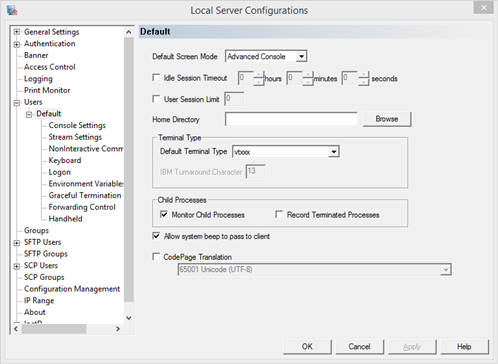
Click on "Users" > "Default" user.
Select the default screen mode. The default is "Advanced Console" which allows Unix-like history scroll back among other features. "Full Console" formats the data and is more efficient as it handles smaller data sets at a time for console screen redrawing. Thus, Full Console is recommended when running character based applications such as trident.exe or sapconsl.exe that display menus as part of the functionality. Select the "Stream" option if the application launched within the ssh session formats its data directly for the client. If unsure as to which screen mode to select, leave the default screen mode setting as is.
Set the "Home Directory". This needs be the path where the application or batch file is located. If left empty, the user account profile will be used as the default home directory.
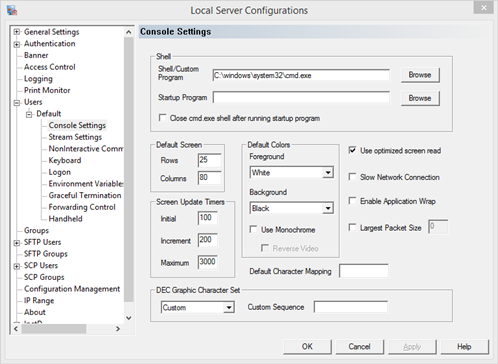
Click on "Default" > "Console Settings" or "Stream Settings", depending on the Default Screen Mode set in the first step. The most important and frequently configured setting under this configuration option is the '"Startup Program" field. Enter the application name or batch file that will run automatically when a user connects via SSH. This should either contain the full path without spaces, enclosed in double quotes, or the path assigned in the previous step as Home Directory.
To have users immediately exit after running any startup program, enable the option to "Close cmd.exe shell after running startup program".
After making the configurations described so far, when you make a SSH connection to the server, your application or batch will automatically be launched / executed upon completing the SSH logon process successfully.
Troubleshooting tip:
If a connection fails after configuring a startup program, remove the configuration and allow the user to log on to the command prompt. Then manually run the desired startup program. This will allow any error messages to be displayed to the user for correction.
Efficiency tip:
If the startup program does not require the command prompt or any initialization prior to launching, then set the startup program as the user shell. This will prevent one less process for each session.
Now to test a basic ssh connection, open up a command line window and type of the following:
ssh user@localhost
where the user can be any valid Windows user with "Log on Locally" rights. "Log on locally rights" can be set under the Windows Administrative Tools > User Rights Assignments.
Please note: Users added under the Pragma Fortress SSH Server settings needs to already exist on the server as local users or in the domain as domain users. New Windows user creation and password set/reset are completed via the Windows user management dialogs. All ssh user authentication is completed by the operating system in conjunction with the domain controller. Ssh configurations made via the Local Fortress SSH Configuration dialog are only for SSH, SFTP and InetD configuration.
Adding SSH Users
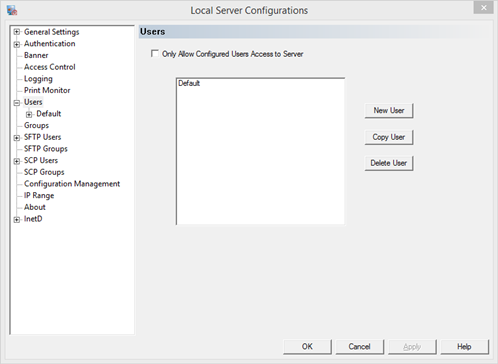
To have ssh shell users do different operations within their shell session add that user under the Users configuration in the Local Fortress SSH Configuration program. Add the user, making sure the name and domain match exactly as they log on to the server.
Troubleshooting tip:
If a user connects with unexpected configuration settings, have the user log on via ssh and compare the USERNAME and USERDOMAIN environment variables to the configured user settings.
Please note: Users added under the Pragma Fortress SSH Server settings needs to already exist on the server as local users or in the domain as domain users. New Windows user creation and password set/reset are completed via the Windows user management dialogs. All ssh user authentication is completed by the operating system in conjunction with the domain controller. Ssh configurations made via the Local Fortress SSH Configuration dialog are only for SSH, SFTP and InetD configuration.
Access Control and Restrict Users
If you want to allow only certain users SSH access, add those users in the Local Fortress SSH Configuration pane by selecting "Users" and select the "Only Allow Configured Users Access to Server" check box.
Once Pragma Fortress SSH Server has been configured and the InetD service is running, you can connect to the server using any SSH client such as Putty, Pragma's GUI SSH Client, FortressCL and Console SSH Client, ssh.exe. Both clients are part of Pragma Fortress SSH Client Suite and included with the server.
If you need further assistance in configuring Pragma Fortress SSH Server, please see http://www.pragmasys.com/products/support for additional resources.
.
|