|
Pragma Fortress SSH Server supports four different host key based server validation / identification options, including x509 certificates. Use the Host Key page to set the host keys for each type of client requested identification.
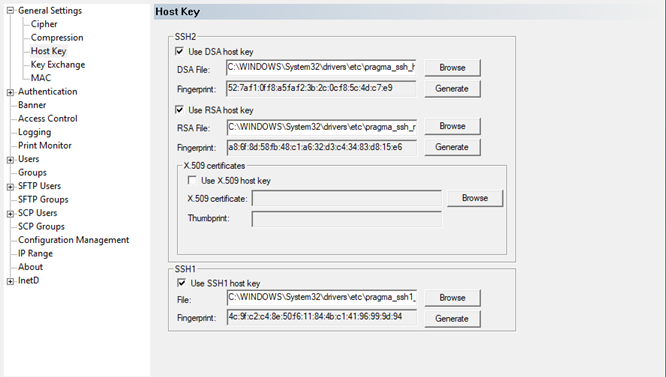
Validating the server is the first step in making a ssh connection. The host key validates that a server is what the server claims to be and not a ghost machine posing as the real server.
The x509 certificates are obtained from trusted source (Certificate Authority) that provide higher cryptographic validation. The x509 certificates require fully qualified server name in order to make connection to a server with x509 based validation support. Unlike DSA/RSA host keys, a known_host file is not needed for x509 based server name validation since the certificate contains account information.
To use a x509 certificate: as a server host key
1.Generate a Host key certificate using your chosen certificate authority
2.Install the host certificate into to the Local machine->Personal certificate store for the computer running Pragma Fortress SSH Server
3.Configure Pragma Fortress SSH Server to use the host certificate as a host key
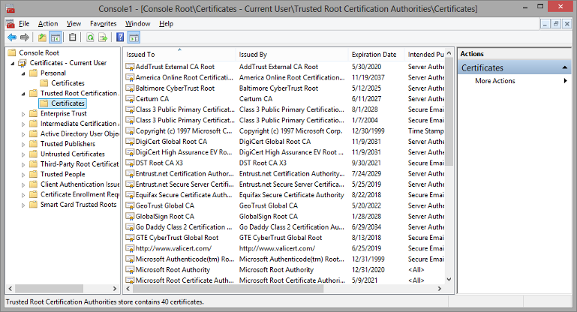
4.Distribute the rootCA for the certificate authority that generated the host key certificate to the clients accessing the server and have them installed into the User->Trusted Root Certificate store on the computer running the client software under the users computer account.
Generate an encryption key
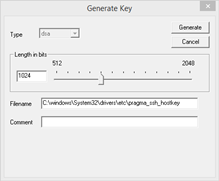
The install will generate three host keys by default, rsa and dsa for ssh2 connections and rsa for ssh1 connections. Use the Generate button to generate a new host key. Since host keys are never used in an interactive way, they cannot have a pass phrase. Putting a key generated by another source that requires a pass phrase will prevent connections.
Type - select the type of key to generate
Since this dialog is opened by a specific generation button the type is set and disabled
Length in bits - enter the key length in the edit box or using the slider
Filename - name and location of the new key
Comment - enter any comment that should be associated with the key. It will be appended to the file after the key is written.
Once connections are made to a server, the host key should not be changed. If the host key is changed the clients will get an error that the host key does not match the host key stored and the connection may not be valid. If the host key must be changed, notify clients of the change so that the new host key can be updated on the side.
X.509 certificate host key
X.509 certificates for the server need to be stored in the Local Computer Personal Certificate Store.
1.Generate a computer certificate using your chosen certificate authority
2.Install the server certificate on the client computers under the Computer->Personal store
a.Launch the Microsoft Management Console (MMC),either from the command prompt or the Run option in the Start Menu.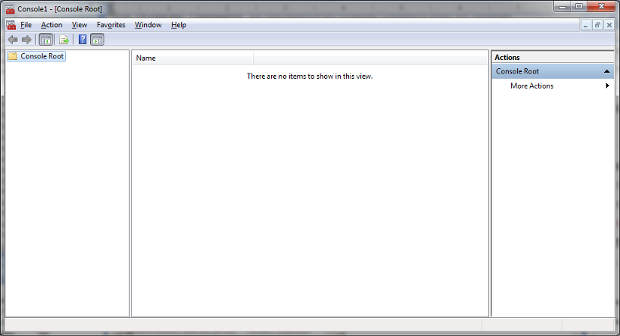
b.From File menu, select Add/Remove Span-in
c.Click on the Add button and then select "Certificates" from the Add Standalone snap-ins dialog
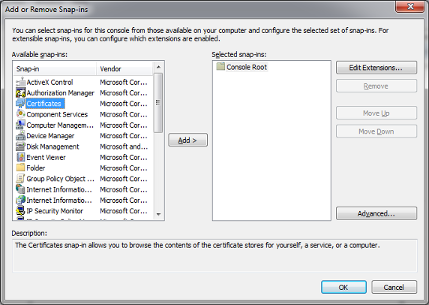
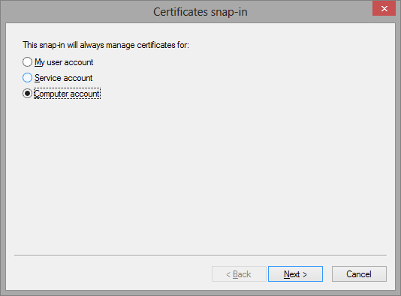
d.Select "Computer account" for account option and click Next.
e.Choose Local Computer and click Finish.
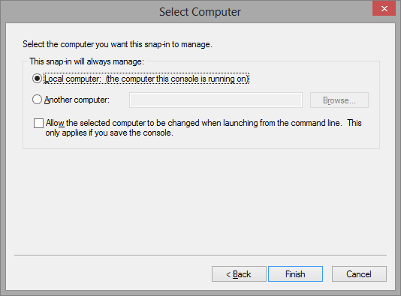
f.Click OK to close the snap-in dialog.
3.Once the Certificates snap-in has been added, expand the tree and select the Personal folder. Expand the Personal folder and select Certificates.
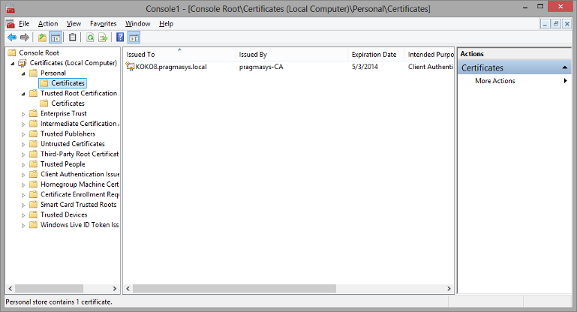
4.Add the certificate by either import or Requesting a new certificate from a certificate server.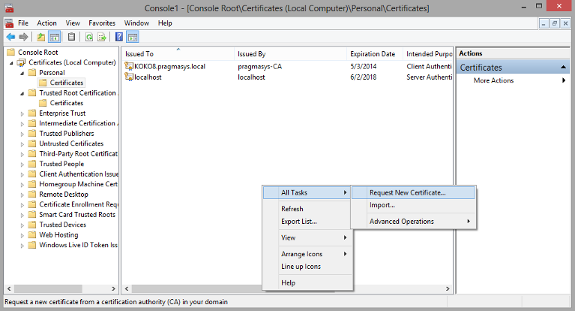
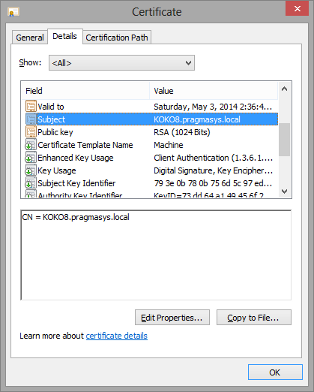
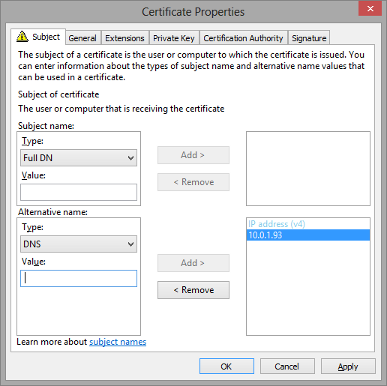
How the server should be addressed by the client using the certificate subject fields. When requesting a certificate the subject and if the template allows, alternative subjects, can be added to designate how the server should be addressed by the client.
The rootCA can be distributed to clients accessing the server. The rootCA should be stored on the client machines using the above steps, but storing the certificate under the Trusted Root Certification
How the client connects to the server will depend on how the certificate was generated and the servers subject name. Templates on Windows can be used that allow multiple subject names to allow the user to connect using different naming conventions.
Certificates can be obtained from a service, loaded from a certificate server on the domain, or self-signed.
Verisign, www.verisign.com, is one of many certificate services available to get a certificate.
Windows server installation disks contain the option to install a certificate server. The process is different for different versions of windows server. Please see the server installation documentation for specific instructions. If a domain certificate server is installed, machines will automatically be loaded with the appropriate CA and host certificates. Also, certificates can be requested by using the Certificates mmc snap-in context menus or via the certificate service's web interface.
For self signed certificates, you can use one of the Microsoft's tools to create a certificate. For SSL, the intended purpose needs to include "Server Authentication". Different tools will activate this property in different ways. For makecert, the parameter "-eku 1.3.6.1.5.5.7.3.1" needs to be included (the numbered string is the numerical representation for the "Server Authentication" purpose.
An example key generation is:
makecert -r -pe -n CN="machine_name" -eku 1.3.6.1.5.5.7.3.1 -ss my -sr localmachine -sky exchange -sp "Microsoft RSA SChannel Cryptographic Provider" -sy 12
Here is a writeup from the web: http://tcle.wordpress.com/2008/05/20/creating-a-self-signed-ssl-certificate-without-a-mess-of-makecertexe-using-ssl-diagnostics-tool/
|