|
Use the FortressCL Connection Wizard to create Site Profile for current and future connections. To launch the Connection Wizard, click the Connection Wizard button from the Toolbar or Site Manager dialog, or select the Connection Wizard option from the File menu.
Connection Wizard will prompt for the following information:
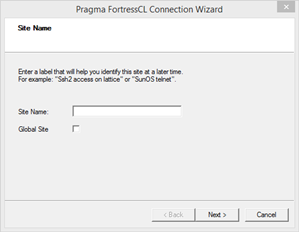
Site Name: Enter a descriptive site name for easily identification of the profile during future uses of FortressCL.
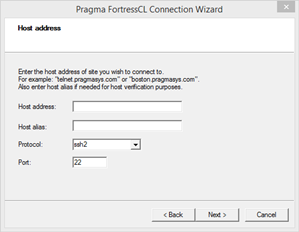
Host address: Enter either the hostname or the IP address of the server to which to connect.
Host alias: Name displayed in the tree view.
Protocol: Choose your desired protocol from the drop down menu. Options available are: SSH1, SSH2, and Telnet.
Port: The port number of the remote server. 22 is the default ssh port for set for SSH2 connection. Port automatically changes to default value of 23 if you select "Telnet" from the drop down menu as your protocol.
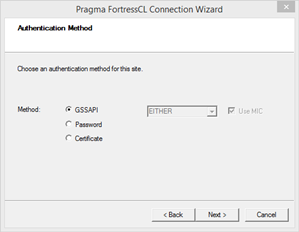
Authentication Method: Select your preferred Authentication method. For more information on supported authentication methods for FortressCL, click here.
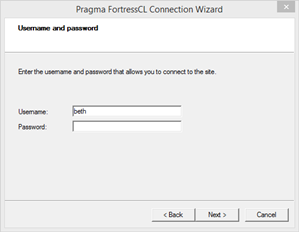
If the password method is selected, the next page will prompt for username and password.
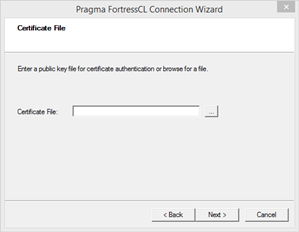
If certificate was selected, the next page will prompt for the certificate file. Select the private key of the key pair to be used for authentication.
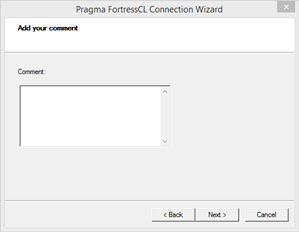
Add Your Comment: You may enter any comments that you may have in the text area.
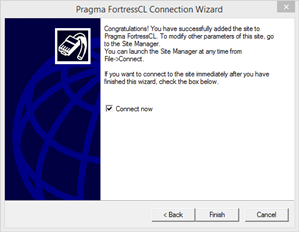
Finish: This is the last page of the wizard. Clicking Finish will close the wizard and create a new site under the Site Manager. Clicking the "Connect now" check box will initiate a connection immediately after closing the Wizard.
|